How to Add Sales Tax Functionality to Your BigCommerce Store
So you've stocked your virtual BigCommerce store shelves with products to sell, set up your shipping methods and services, and configured payments. And you've just realized that you need to collect sales tax on purchases made from your online store.
The Wayfair Decision
On June 21, 2018, the Supreme Court changed everything with their ruling in South Dakota vs Wayfair. The Supremes decreed that even without physical nexus, online retailers are liable for collecting and remitting state sales tax if they meet certain thresholds.
State sales thresholds range from $10,000 to $500,000, with requirements differing from state to state. Multiplied by 45 states and more than 10,000 tax jurisdictions nationwide, sales tax compliance has become a daunting challenge.
Setting Up Tax in BigCommerce
- Go to your store dashboard's home page
- In the left-hand sidebar, click on Store Setup, then click on Tax
- Scroll down, and to the right of Tax Settings, click Edit
Key Tax Settings
- Decide what to call the tax (e.g., Sales Tax, GST, or simply Tax)
- Specify whether prices include tax
- Set Fallback Tax for when automatic providers can't be reached
- Choose the address basis for calculating sales tax
Automatic Tax Services
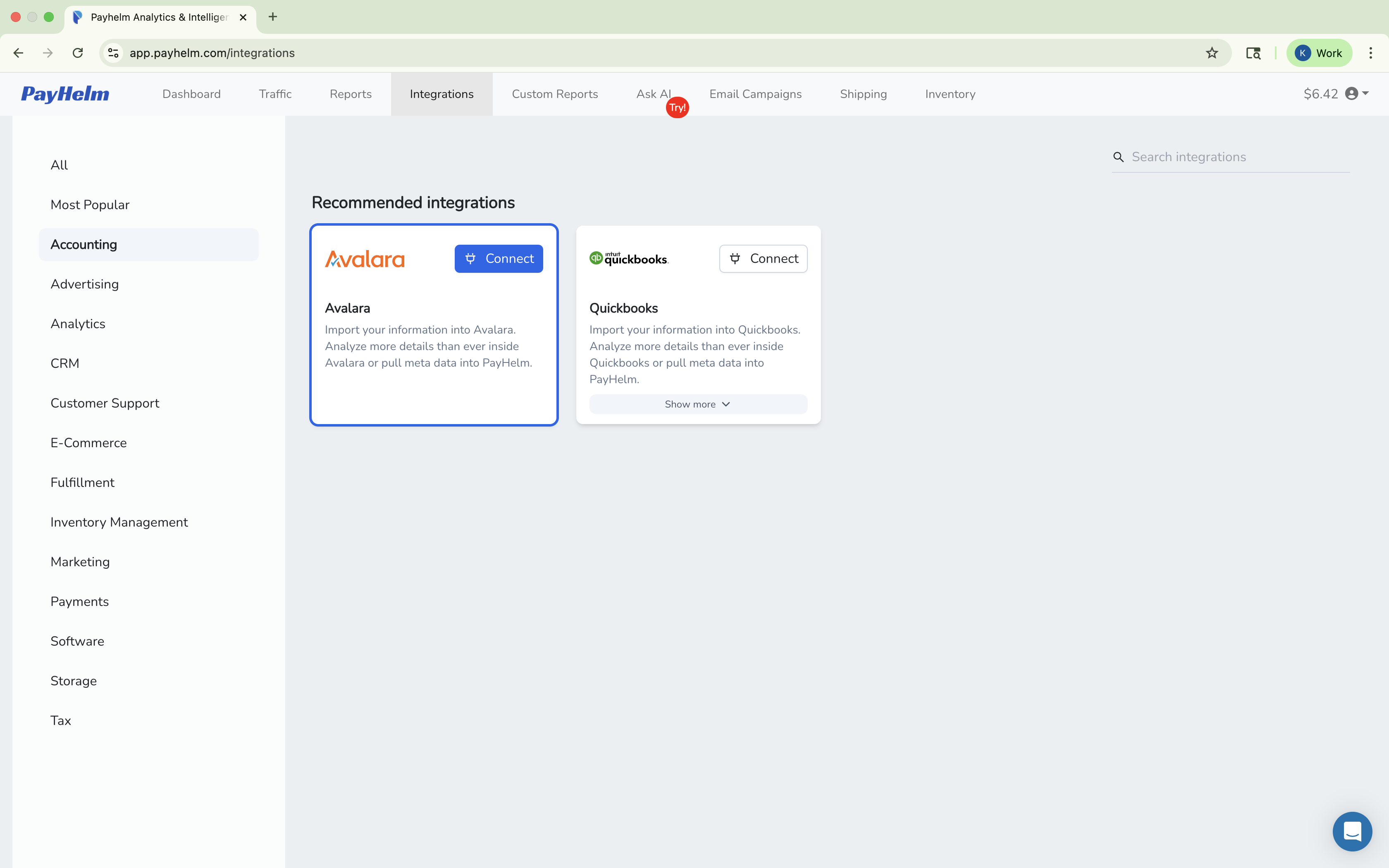
BigCommerce has integrated with popular tax service providers like Avalara, Vertex, TaxCloud, and TaxJar. Each supports automatic tax calculation in buyers' shopping carts and at checkout.
There's nothing more certain than death and taxes, but sales tax doesn't have to be the death of you!