Connecting AI to your business should not mean handing it unrestricted access to your accounts. A teammate who needs to review advertising performance does not necessarily need permission to change campaigns, and an agency managing several clients needs more than a single shared workspace. PayHelm brings those distinctions into its AI, reporting and organization controls, so you can decide what people and their connected tools can do.
This guide explains how My AI, team settings, organization-specific connections and MCP permissions work together. It also covers mobile organization switching and the activity and cost records that help you understand how AI is being used. From a cybersecurity perspective, the goal is to limit unnecessary access, make permitted actions understandable and give your team information it can review. These controls support a deliberate access policy; they are not a claim that any AI system can eliminate every security risk.
AI cybersecurity starts with least-privilege access
An AI assistant connected to business systems introduces a familiar security question: how much access does this identity actually need? The principle of least privilege means granting only the capabilities required for a defined task. In an AI workflow, that includes the organization, connected accounts, reporting areas and tools available to the person using it. A request to summarize advertising performance should not become an excuse to enable every account-editing tool.
Reducing unnecessary permissions limits the potential impact of an accidental action, an exposed credential or a misleading instruction in content the AI encounters. It does not make prompt injection impossible or remove the need to secure your devices and credentials. Use PayHelm's access settings as one part of a broader cybersecurity routine that also includes careful credential handling and review of consequential changes. Keep human responsibility clear: decide who owns each integration, who can authorize access and who investigates unexpected activity.
Choose which AI tools your team can use
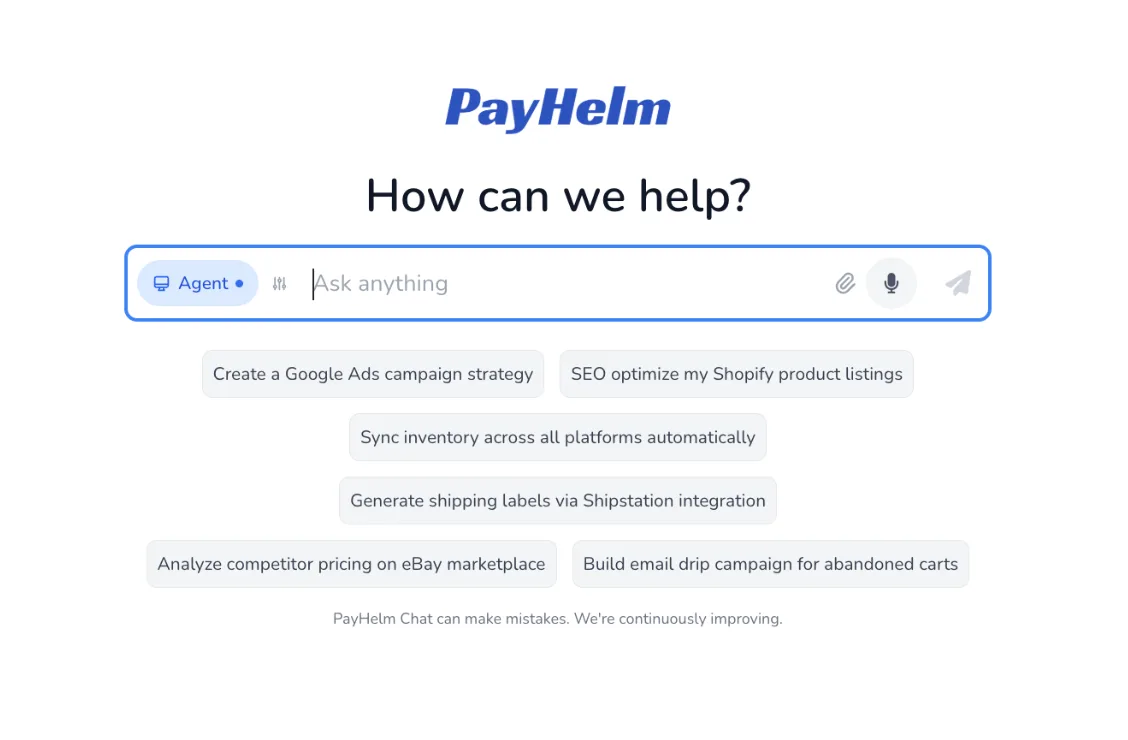
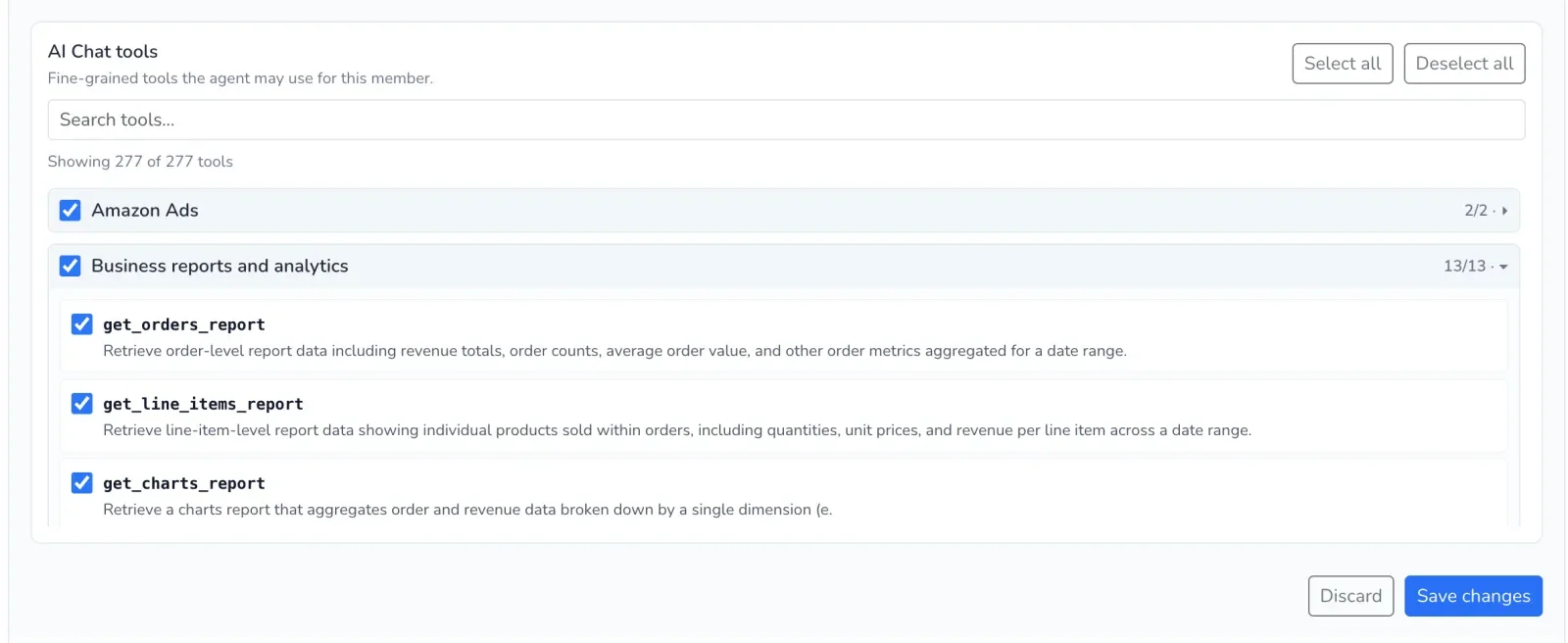
The My AI section gives you a place to manage which tools your team can access. Instead of treating an AI assistant as one all-powerful capability, you can make decisions about the particular tools available to it. That matters because reading information and changing information carry different consequences. A reporting question may need access to performance data without needing a tool that updates an advertising account.
Start with the tools required for the job rather than enabling everything just in case. Expand access when a teammate has a clear reason to use an additional capability. Review enabled tools when responsibilities change, especially when someone moves from analysis into campaign management. The result is a more understandable scope for your PayHelm AI Agent, not a blanket invitation to act across your business.
Separate reviewing Google Ads from making changes
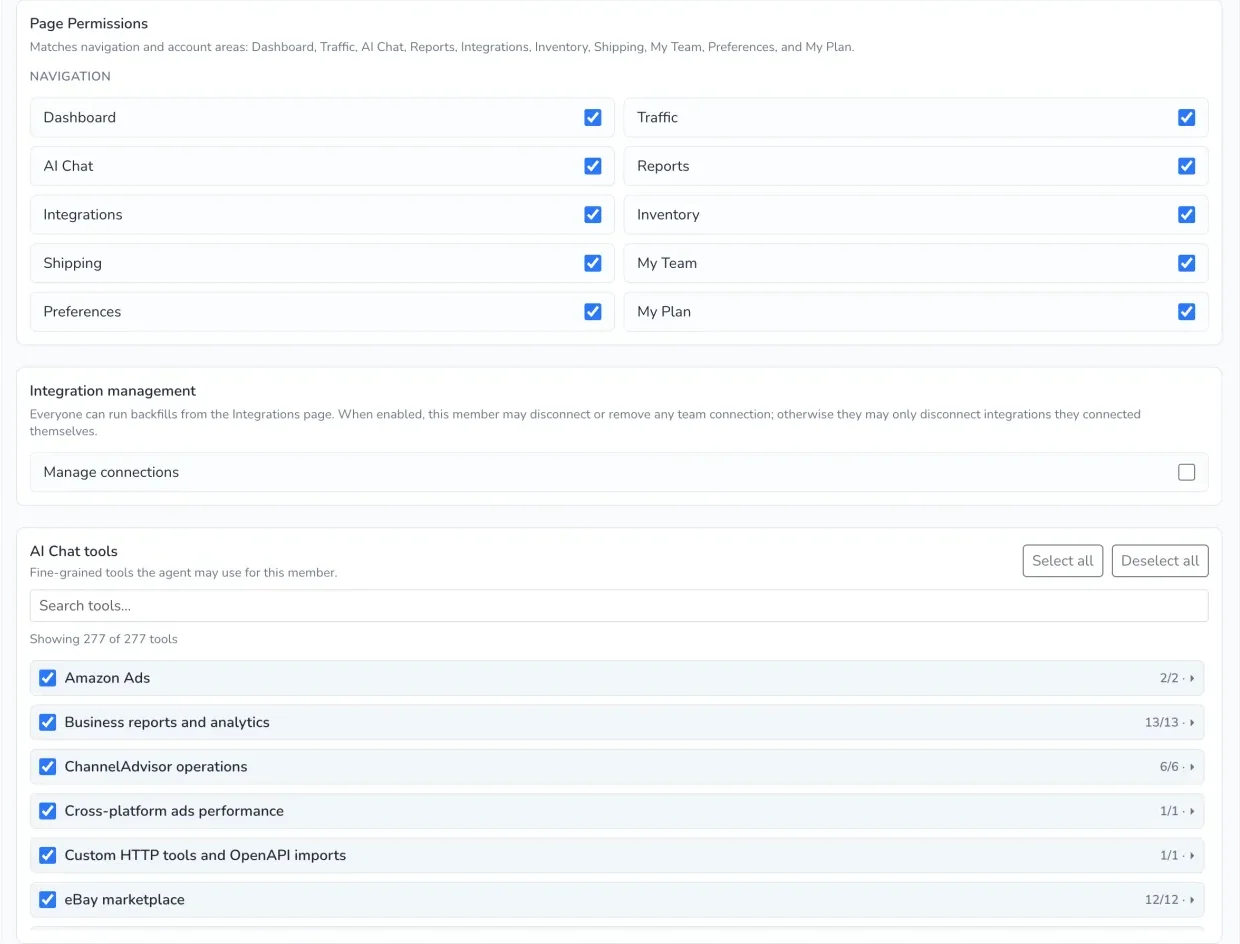
Team settings let you fine-tune tooling for individual team members. For example, one teammate may need to review Google Ads results while another is responsible for updating Google Ads. Those are different jobs, and their tool access should reflect that difference. Giving an analyst the ability to inspect performance does not require giving them every editing capability available to a campaign manager.
For a practical setup, define who reviews results, who proposes changes and who is allowed to carry them out. Enable the relevant review and update tools for each person rather than relying on a prompt that merely asks the AI to be careful. A prompt can describe your intentions, but it should not replace the access settings that define the person's allowed actions. Revisit those settings when someone changes roles or finishes a client engagement. Before enabling a write-capable tool, make sure its permitted scope matches the accounts and responsibilities that person actually manages.
Keep organizations and their connections separate
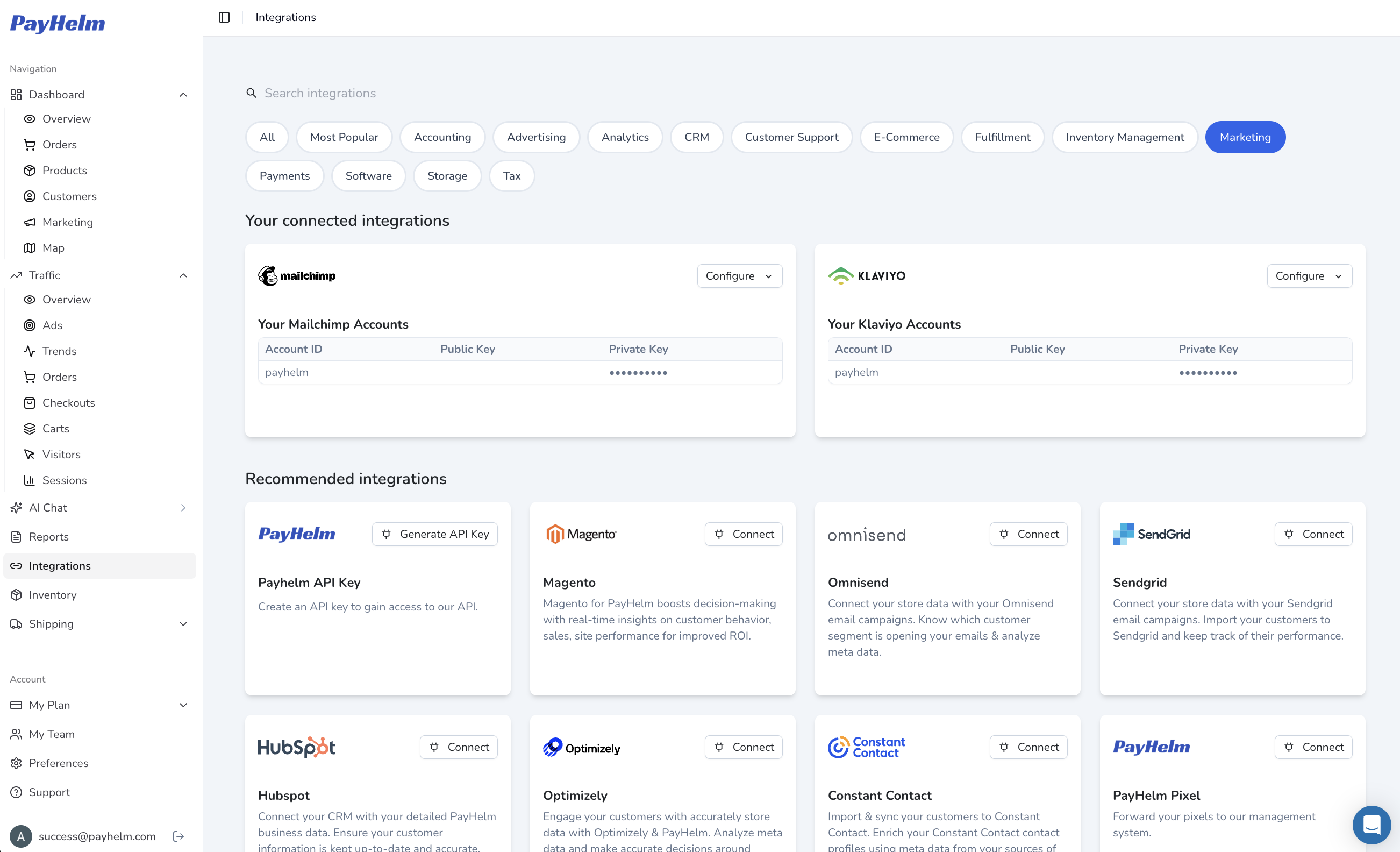
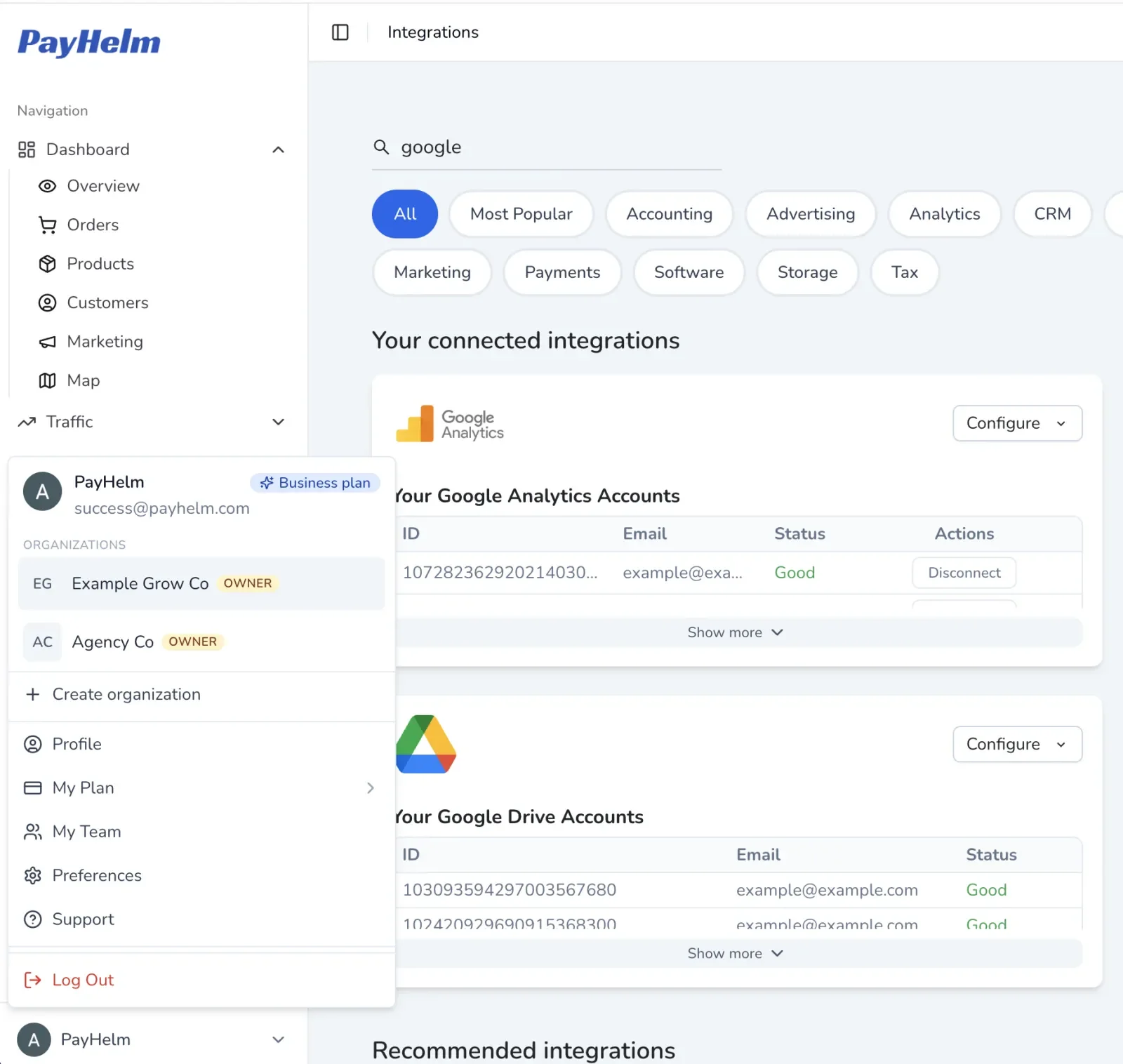
Organizations provide distinct working contexts for the businesses or clients you manage in PayHelm. You can switch between them rather than treating every connected account as part of one undifferentiated workspace. Manage connections within the relevant organization and consider which team members should have access to those connections. A person working with one client should not be assumed to have the same access in another client's organization.
This is particularly useful for agencies, consultants and teams operating more than one business. Check the active organization before connecting a service, reviewing reports or asking AI to perform an account-specific task. When onboarding a teammate, review both their organization membership and the connections and tools they can use there. When offboarding them, review access in each organization they belonged to rather than assuming a change in one workspace covers every client. Clear organization boundaries make it easier to understand which business a request belongs to and which access rules apply.
Give each teammate the reporting access they need
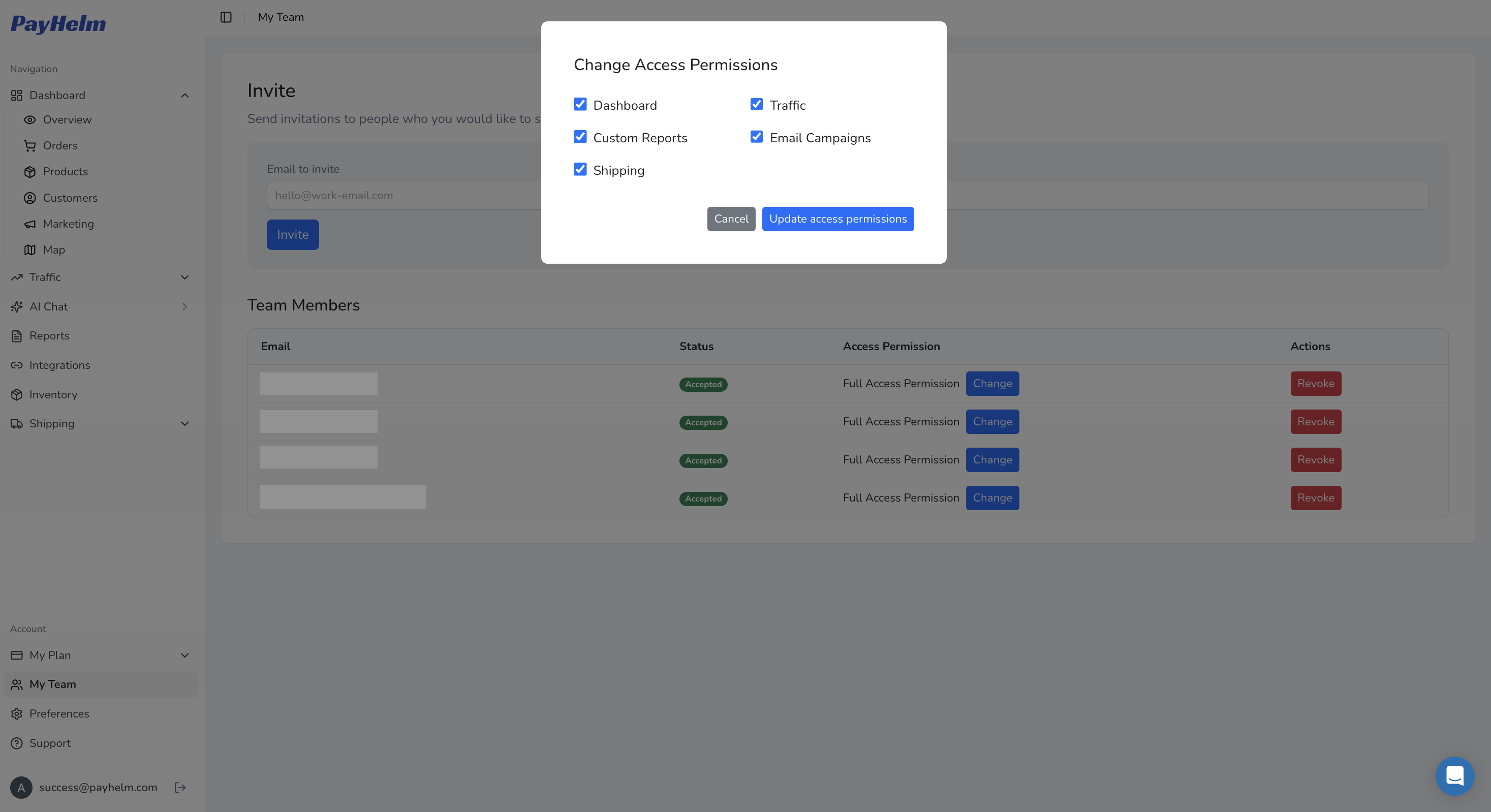
Not every person who works with your business needs access to every type of report. PayHelm's team controls let you determine which reporting areas a teammate can see. Someone responsible for one part of operations can have a different reporting scope from a person responsible for broader business analysis. That keeps collaboration useful without treating full reporting access as the default.
Review reporting permissions alongside AI tool permissions because they address related but distinct questions. Reporting settings define the areas a person can access, while tool settings define the capabilities available for their work. Use the combination to match access to real responsibilities, including sensitive reporting areas that should remain restricted. Test a teammate's intended workflow after changing access so you know they can complete their job without unnecessary privileges. As the team grows, a repeatable review of both settings is easier to manage than a collection of informal exceptions.
Manage client organizations on the go
Managing clients does not stop when you leave your desk. In PayHelm's mobile app, you can use the organization switcher to move into or out of an organization's working context from your mobile device. That gives you a practical way to move between client workspaces without treating all of their data as one account. Switching organizations changes the context you are working in; it does not grant access to an organization you are not authorized to use.
Before asking about a client's results, confirm the organization currently selected in the app. Do the same before requesting an action that could change a connected account. Your team membership, reporting access and tool permissions still matter when you are using a phone. For an agency owner, this makes mobile client management more useful while preserving the distinction between clients. The convenience is quick switching between authorized workspaces, not a mobile shortcut around their access controls.
Mobile app availability
PayHelm's mobile app is available on iOS and Android, so you can manage authorized client workspaces from either platform.
MCP keys respect the member and organization behind them
PayHelm MCP brings tools into compatible external AI clients and custom workflows without making the user's existing permissions irrelevant. When a team member creates an MCP key, access respects that member's permissions within the relevant organization and the tools available to them. Connecting through MCP does not make a review-only teammate an account administrator. The applicable tool and skill access settings remain part of the scope of what that connection can use.
This matters when you want someone to build a dashboard, an internal tool or a workflow using only a subset of capabilities. First configure the appropriate organization membership, reporting access and tool permissions for the member whose key will be used. Then connect the workflow using credentials with that intended scope, rather than supplying a broadly privileged key and hoping the application ignores its extra powers. A key is a credential acting with its owner's permitted access, not an independent grant of whatever access its recipient personally needs. Prefer a suitably restricted member context, keep keys out of browser code and public repositories, and review access when the project ends.
Change or revoke access as your business changes
Useful control includes the ability to change your mind. You can revise team access and revoke access when a teammate, contractor or integration no longer needs it. Treat that as an ongoing business process rather than a setup task you complete once. Revoking access is about preventing future authorized use; it does not erase information someone has already exported or reverse changes already completed.
You can also use authorized AI tooling to help manage your business context, including creating or editing organizations where the relevant tools and permissions are available. Ask the AI to describe the intended organization and requested change before you proceed with a consequential action. That makes the workflow easier to understand, but it is a working practice rather than a promise that every tool has an identical approval dialog. Keep organization administration tools limited to people who actually need them. Pair access reviews with a check of recent activity so changes in responsibilities are reflected in both your settings and your day-to-day use.
Audit AI activity, credits and costs together
Control also means understanding what AI is doing and what that work costs. PayHelm's AI Tools section brings together activity records for chats, tool calls, MCP requests and AI integrations used through mobile or the app. Associated credit and cost records let you review usage rather than judging it only from the final answer a person receives. For teams building customer-facing workflows, that visibility helps connect customer usage with its operational cost.
Use these records to investigate which workflows are being used and where costs are accumulating. Review the available cost and usage limit settings alongside the permissions that make a workflow possible. Set limits appropriate to the business task and revisit them when usage changes, rather than assuming last month's budget fits a new integration. These records describe activity visible to PayHelm; they should not be treated as a log of unrelated actions or a complete bill for services running outside the platform. A useful management routine combines access reviews, activity checks and cost reviews so you understand both what a workflow is allowed to do and what its usage means for the business.
Turn permission checks into a repeatable access audit
A useful access audit asks whether current permissions still match current responsibilities. Review organization memberships, connected services, reporting visibility, enabled AI tools and MCP credentials together rather than checking just one setting. For each member, identify the business task that justifies their access and whether it requires reading data, making changes or both. Remove permissions left over from completed projects and review contractor access when an engagement ends.
Compare the activity available in AI Tools with the workflows your team expects to run, and investigate unfamiliar requests or unusual cost patterns. If a credential may have been exposed, revoke the affected access, review the relevant records and reconnect only with the permissions still required. Record your review decisions in your own security process, including who reviewed access and what changed. This is operational audit visibility, not a claim of an independent cybersecurity audit, a SOC 2 or ISO certification, immutable logs, a specified retention period or automatic threat detection.
- Scope: Is this the correct organization, and are its connected accounts still needed?
- Permission: Does each member need these reporting areas, tools and write capabilities?
- Credentials: Is each MCP key used only by its intended workflow and stored securely?
- Activity: Do the available requests and cost records match expected use?
- Response: Who will revoke access and investigate if something looks wrong?
A practical starting checklist for controlled AI
Begin by choosing the organization you want to work in and checking its connections. Review each teammate's reporting access before enabling the AI tools needed for their role. Keep review-only tasks separate from editing tasks, especially for services such as Google Ads. If you are connecting an external AI client through MCP, verify the member and organization whose permissions the key will use.
Store that key securely and do not place it in a public dashboard or share it as a substitute for properly configured membership. Check the AI Tools activity and cost records after the first real workflow runs. Set appropriate available limits and decide who will review changes in usage. Repeat the review when teammates, clients or responsibilities change, and revoke access that is no longer needed. Explore the PayHelm Analytics & Data Platform and the MCP setup guide to build useful workflows while keeping their scope understandable.