
Integrations
Connect Any App to PayHelm: Send Data via Zapier Webhooks
PayHelm now accepts data from over 7,000 apps through Zapier webhooks. No custom code, no dev sprint — just an API key and a webhook. Here's exactly how to set it up.
Master PayHelm's custom columns feature to create unique metrics, incorporate custom calculations, and build tailored reports that align with your business objectives.
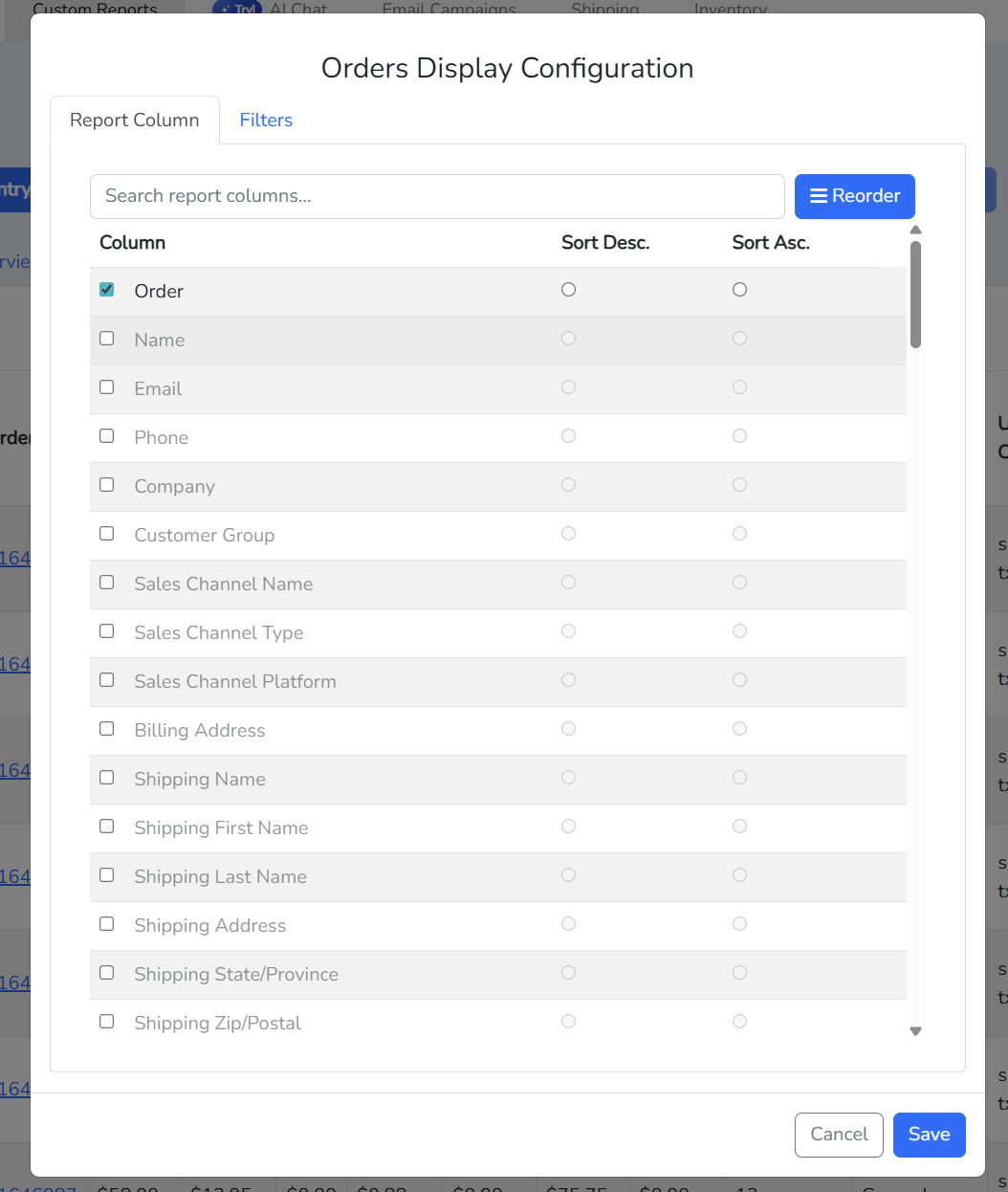
Our custom columns feature offers users a dynamic toolset for crafting unique metrics and incorporating custom calculations into your data analytics. Imagine you're using our app to analyze your data. With the custom columns feature, you're not limited to pre-defined metrics or calculations. Instead, you have the freedom to design and implement your own, giving you unparalleled control over how you interpret and utilize your data.
Whether you're tracking sales performance, monitoring website traffic, or analyzing customer feedback, this feature puts the power in your hands to create metrics that reflect the exact insights you're seeking. Plus, it's incredibly intuitive to use, allowing you to seamlessly add, edit, and manage your custom columns.
By incorporating custom columns into your data analysis workflow, you're not just crunching numbers – you're crafting a tailored approach that aligns perfectly with your unique business objectives or personal interests. So, dive in, explore, and unleash the full potential of your data analysis with our custom columns feature.
Creating custom columns is a breeze! Just follow these simple steps:
Once you've done that, here's a few steps to follow to properly configure your custom column definitions:
If you want to include a condition for your custom calculation, you can specify it using the following format:
[Key] [Comparison Operator] [Value]
or
([Key] [Comparison Operator] [Value]) and ([Key] [Comparison Operator] [Value]) – For Grouping format
Example 1: total_sales > 1000
Example 2: (customer_company == "Google") and (total_sales > 1000)
Note: When utilizing text or characters as values, it is necessary to enclose them within double quotation marks.
Available keys for conditions:
customer_id, name, customer_email, customer_phone, customer_company, customer_group_name, tax_exempt_category, customer_form_fields, shipping_form_fields, billing_full_address, shipping_full_address, billing_street_address, shipping_street_address, shipping_city, shipping_province, shipping_zip, last_order_date, total_tax, tax_rate, gross_tax_rate, total_costs, gross_margin, merchant_id, grand_total, total_shippings, total_cost_of_refunds, total_store_fees, avg_shipping, total_discounted_orders, total_store_credit_refund, total_shipping_refund, total_refund_tax, net_sales, avg_items_per_order, avg_price, total_items_sold, total_orders, total_sales, total_refunds, total_items_refunded, avg_fulfillment_time, min_fulfillment_time, max_fulfillment_time, total_profit, avg_tax, avg_order, max_sales, min_sales, max_tax, min_tax, max_shipping, min_shipping, max_discount, min_discount, skus
Available comparison operators:
< (less than)<= (less than or equal to)> (greater than)>= (greater than or equal to)== (equal to)!= (not equal to)( and ) (parentheses for grouping expressions)After specifying the condition (if applicable), proceed to define the calculation expression. Use the following format:
[Key] [Operator] [Value]
([Key] [Comparison Operator] [Value]) and ([Key] [Comparison Operator] [Value]) – For Grouping format
Example 1: total_sales + total_tax
Example 2: total_sales + 20000
Available keys for calculations:
total_tax, tax_rate, gross_tax_rate, total_costs, gross_margin, grand_total, total_shippings, total_cost_of_refunds, total_store_fees, avg_shipping, total_discounted_orders, total_store_credit_refund, total_shipping_refund, total_refund_tax, net_sales, avg_items_per_order, avg_price, total_items_sold, total_orders, total_sales, total_refunds, total_items_refunded, total_profit, avg_tax, avg_order, max_sales, min_sales, max_tax, min_tax, max_shipping, min_shipping, max_discount, min_discount
Available expression operators:
+ (addition)- (subtraction)* (multiplication)/ (division)% (modulo)^ (exponentiation)( and ) (parentheses for grouping expressions)Available metrics:
Total Tax, Tax Rate, Gross Tax Rate, Total Costs, Gross Margin, Grand Total, Total Shippings, Total Cost of Refunds, Total Store Fees, Average Shipping, Total Discounted Orders, Total Store Credit Refund, Total Shipping Refund, Total Refund Tax, Net Sales, Average Items Per Order, Average Price, Total Items Sold, Total Orders, Total Sales, Total Refunds, Total Items Refunded, Total Profit, Average Tax, Average Order, Maximum Sales, Minimum Sales, Maximum Tax, Minimum Tax, Maximum Shipping, Minimum Shipping, Maximum Discount, Minimum Discount
Here are real-world examples showing how businesses use custom columns to track complex metrics:
Many businesses need to calculate commissions based on sales performance thresholds. Here's how to create a "Total Commission" custom column with tiered calculations:
Field Name: Total Commission
Conditional Calculations:
(shipping_form_fields == "Sales Rep A") and (total_sales > 100000)(total_sales - 100000) * 0.03(shipping_form_fields == "Sales Rep B") and (total_sales > 100000)(total_sales - 100000) * 0.05(shipping_form_fields == "Account Manager") and (account.total_sales > 500000)(account.total_sales - 500000) * 0.02This setup calculates commissions only on sales exceeding the threshold amount, with different rates for different team members or roles.
Track performance across different regions with conditional calculations:
Field Name: Regional Sales Performance
Conditional Calculations:
(shipping_province == "CA") and (total_sales > 50000)total_sales * 1.1This example applies a 10% bonus to California sales exceeding $50,000, useful for incentive programs or performance tracking.
Calculate net revenue for specific customer groups:
Field Name: Premium Customer Revenue
Conditional Calculations:
(customer_group_name == "Premium") and (total_orders > 10)total_sales - total_costs - total_discounted_ordersThis helps identify actual profit from your most valuable customer segment.
Create a simple profit margin percentage column without conditions:
Field Name: Profit Margin %
Calculation: (total_profit / total_sales) * 100
This straightforward calculation gives you instant visibility into your profit margins across all orders.
Comprehensive integration: Connect with Google Analytics, Shopify, and 180+ other applications
Full customer journey tracking: Attribute sales across multiple marketing channels
Customizable dashboards: Create personalized views of your business performance (PayHelm Pro)
Custom reporting: Extended functionality across all integrations (PayHelm Plus)
Ready to transform your ecommerce analytics? Book a demo to see how PayHelm can help you gather relevant data, make informed decisions, and increase profitability.
This powerful feature expands your analytical capabilities, allowing you to create custom metrics that align perfectly with your business objectives.
Access this feature through the Analytics section of your PayHelm dashboard. Our intuitive interface makes it easy to create and deploy custom calculations.
Connect these platforms with PayHelm to get unified analytics and insights
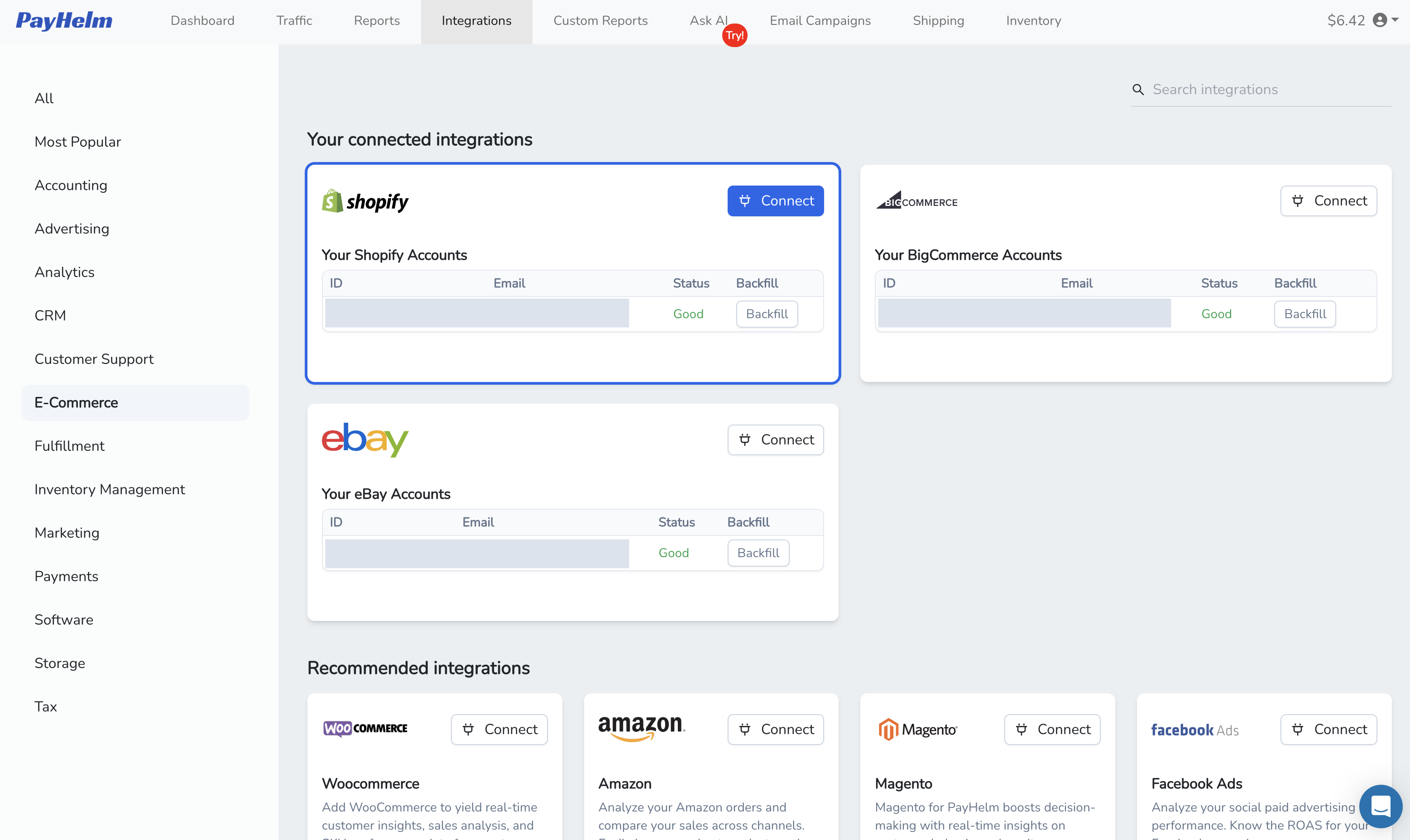
Integrate Shopify with PayHelm to deliver real-time customer insights, sales analysis, and store performance data for better business decisions and ROI
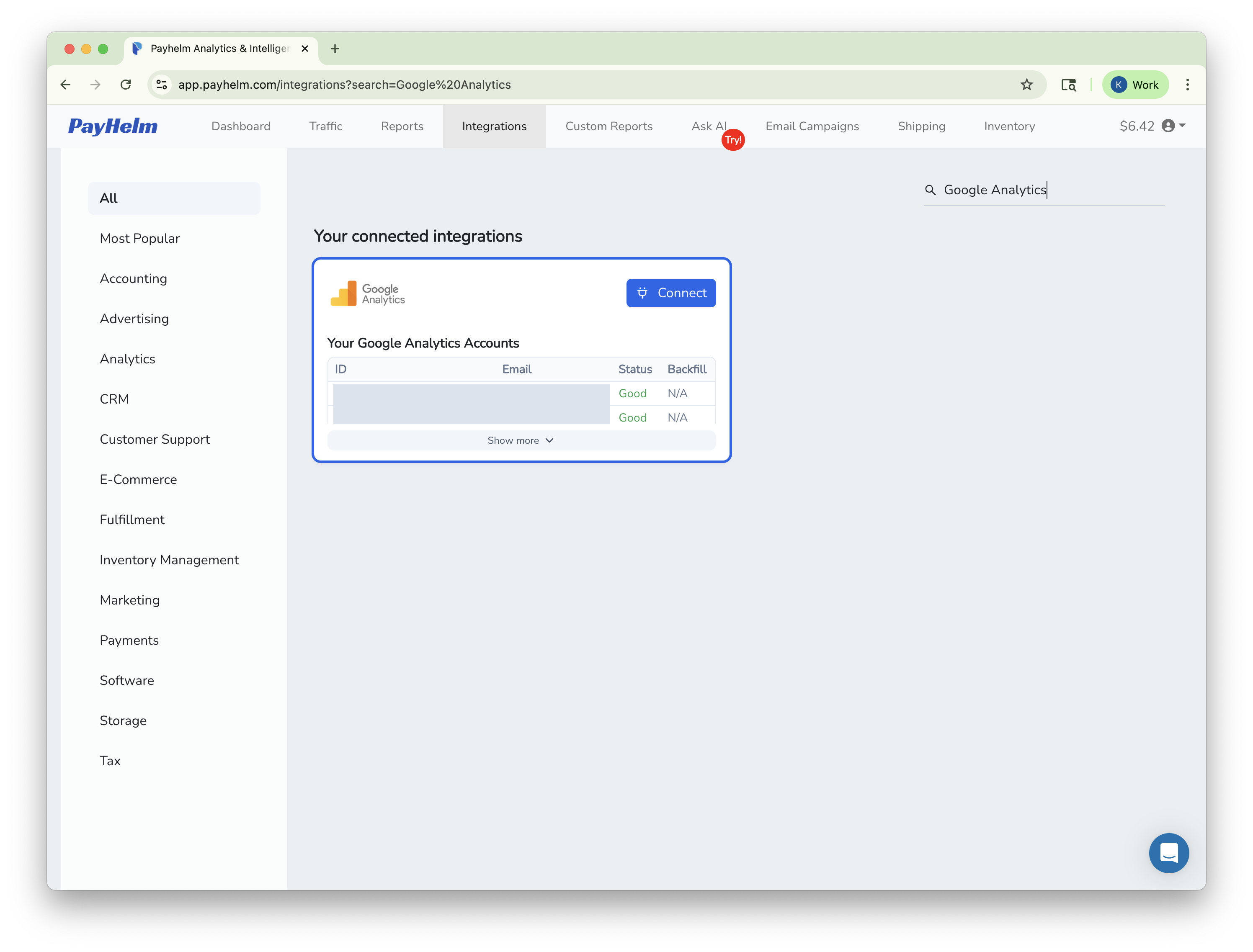
Integrate Google Analytics with PayHelm for comprehensive website and ecommerce performance insights
Analyze UPS shipping performance, costs, and delivery metrics for logistics optimization
Let an AI agent handle these tasks for you — automatically, on a schedule.
Detect broken links on your site before they cost you customers and conversions.
Understand what's actually driving your PMax campaigns and where the gaps are.
Protect your sender reputation before bad segments destroy your inbox placement.